How to Create Fillable PDFs to Sell
In this article
- Define a Fillable PDF Product Buyers Will Pay For
- Plan the Content, Layout, and Interactive Features
- Design a Professional PDF in the Right Creation Tool
- Create Fillable PDFs to Sell With Interactive Form Fields
- Test the PDF on Devices, Apps, and Real-World Use Cases
- Package the PDF as a Buyer-Ready Digital Product
- Use Digital Product Bundle Creation to Increase Perceived Value
- Price the Fillable PDF and Digital Product Package
- List and Market the Product for Online Sales
- Improve Sales Through Updates, Feedback, and Additional Offers
- Conclusion
- FAQ
Turning your expertise into profitable digital assets is a smart move for any entrepreneur. Many creators look for ways to sell digital products online, but few understand the mechanics of building high-quality, interactive documents that customers truly value.
This guide provides a practical twelve-section framework designed for your success. We will walk through every stage, from identifying a specific problem your audience faces to designing, testing, and pricing your work effectively.
Successful fillable PDF products must do more than look good; they need to function perfectly across all devices. By focusing on clear buyer instructions and reliable performance, you ensure a smooth experience for your users. Learning how to create fillable PDFs to sell allows you to build a scalable business that works for you around the clock.
Key Takeaways
- Identify a specific customer problem before starting your design.
- Prioritize cross-device compatibility for a professional user experience.
- Include simple, step-by-step instructions for your buyers.
- Test your interactive elements thoroughly before launching.
- Use a structured twelve-step approach to streamline your production.
Define a Fillable PDF Product Buyers Will Pay For
Creating digital offers that actually sell requires more than just good design; it demands a strategic approach to problem-solving. You must start by identifying a specific audience and the practical challenges they face in their daily lives. When you solve a genuine pain point, your product becomes an essential tool rather than a luxury purchase.
Identify a Specific Audience and Practical Problem
Begin by narrowing your focus to a niche group, such as small business owners, students, or busy parents. Ask yourself what repetitive tasks consume their time or cause them stress. By focusing on a specific problem, you make it easier for your target customer to recognize that your product is built exactly for them.
Choose a Product Format That Fits the Buyer’s Workflow
The format you choose should align with how your customer prefers to work. Some users want a structured planner to organize their week, while others need a quick checklist to ensure they do not miss a step in a complex process. Matching the format to the user’s workflow is key to high satisfaction.
Planners, Workbooks, Checklists, and Worksheets
These formats are ideal for educational or organizational goals. They encourage active engagement and help users track their progress over time.
Forms, Trackers, Templates, and Client Documents
These options are perfect for professional environments where data entry and consistency are vital. Below is a quick guide to help you choose the right fillable PDF product ideas for your audience:
| Format Type | Best Use Case | Primary Benefit |
|---|---|---|
| Planners | Goal setting | Structure |
| Trackers | Habit monitoring | Accountability |
| Forms | Data collection | Efficiency |
Validate Demand Before Building the Full PDF
Before you invest hours into design, perform thorough digital product research to ensure there is a hungry market. You want to confirm that people are actively searching for solutions to the problem you intend to solve.
Research Etsy, Shopify, Gumroad, and Pinterest Search Results
Use these platforms to see what is currently trending. If you see many high-quality products in a specific category, it is a strong sign of demand. Use the search bars on Etsy, Shopify, Gumroad, and Pinterest to see what keywords users are typing in, as this provides invaluable insight into their intent.
Use Customer Questions and Competitor Gaps as Product Ideas
Look at the reviews of existing products to find customer problem validation. If customers are complaining about a missing feature or a confusing layout in a competitor’s product, you have found a gap. By addressing these specific frustrations, you can create a superior version that stands out in the marketplace.
Plan the Content, Layout, and Interactive Features
A structured approach to digital product package creation makes the entire development process significantly easier. By mapping out every page, field, and instruction before you begin designing, you avoid the frustration of redoing your work later. This preparation ensures that your final product is both functional and professional.
Create a Page-by-Page Content Outline
Start by sketching a rough outline of your document on paper or in a simple text editor. Identify the purpose of each page and determine what information the user needs to provide. Clarity is key when organizing your content to ensure the user stays engaged throughout the document.
Decide Which Fields Should Be Fillable
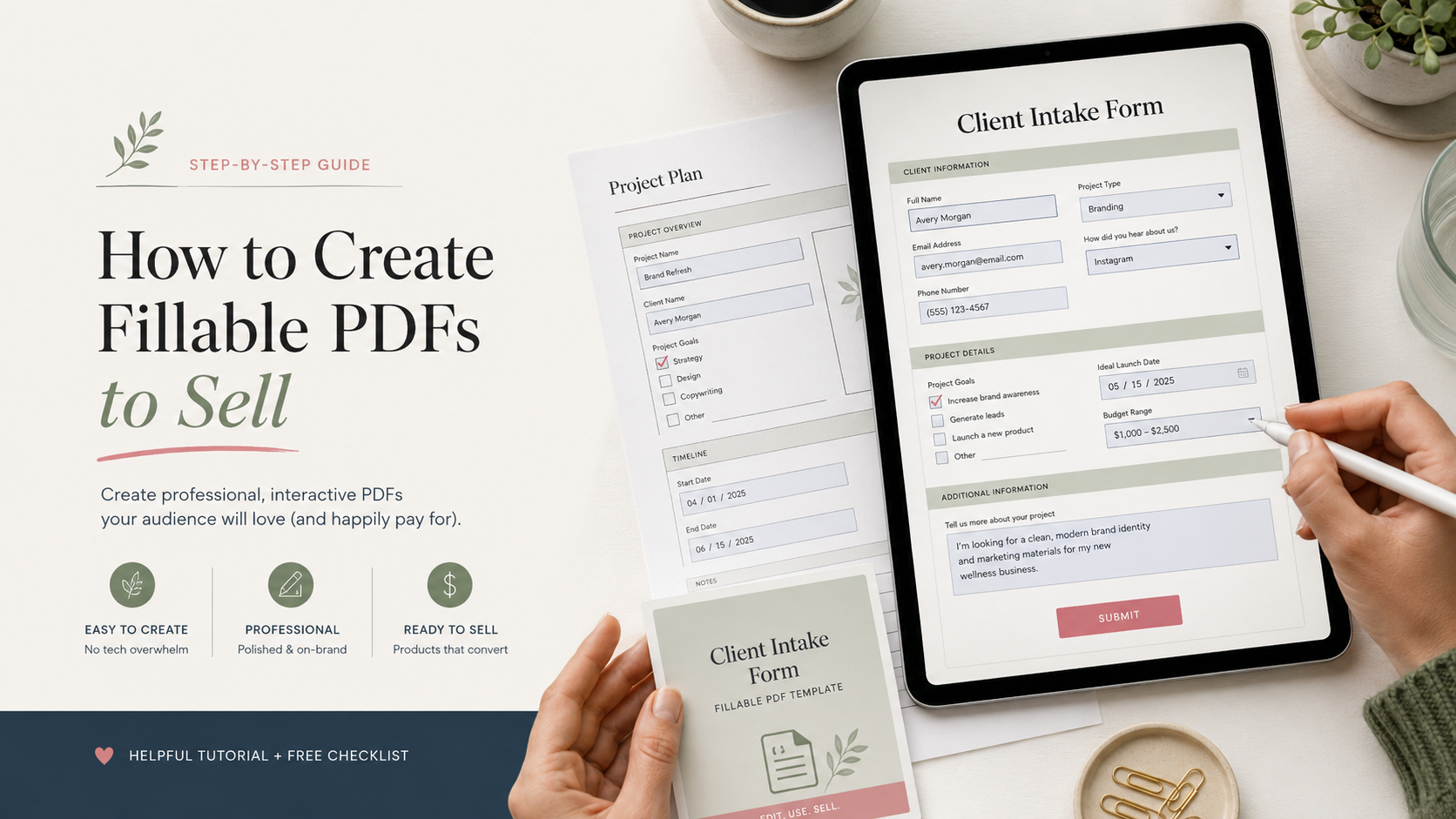
When you integrate fillable PDF form fields, it is important to balance functionality with simplicity. Only include fields that serve a specific purpose for the user. Adding too many unnecessary interactive elements can clutter the design and confuse your customers.
Text Fields, Checkboxes, Radio Buttons, and Dropdown Menus
These standard interactive PDF features allow users to input data efficiently. Use these elements to guide the user through specific choices:
- Text Fields: Best for names, addresses, or open-ended comments.
- Checkboxes: Ideal for “select all that apply” scenarios.
- Radio Buttons: Use these when the user must choose exactly one option from a list.
- Dropdown Menus: Perfect for long lists of options to save space on the page.
Date Fields, Signature Fields, and Calculation Fields
Advanced fields add significant value to your product by automating repetitive tasks. Use date fields to ensure consistent formatting and signature fields to provide a professional touch for legal or formal documents. Calculation fields are particularly powerful, as they allow the PDF to perform math automatically, which saves the user time and reduces errors.
Design a Clear User Flow From First Page to Final Action
A logical user flow is essential for a positive experience. Think about how a user moves from the first page to the final submission or print action. You should arrange your fields in a natural order that matches how a person would logically fill out the form.
Prepare Accessible Labels, Instructions, and Error-Prevention Tips
Prioritizing accessible PDF design ensures that all users can interact with your product effectively. Clear labels help screen readers interpret your form, while simple instructions prevent common mistakes. Consider adding these elements to your workflow:
- Use descriptive labels for every field so users know exactly what to type.
- Include brief, helpful tooltips for complex sections.
- Provide a “Clear Form” button to help users reset their data if they make a mistake.
Design a Professional PDF in the Right Creation Tool
Your journey toward a professional fillable PDF design begins with selecting the perfect software stack. By combining visual design power with robust technical functionality, you create a product that users find both beautiful and easy to use.
Choose Between Canva, Adobe Acrobat, and Other PDF Workflows
Use Canva or Another Design Tool for the Visual Layout
Some of the links below are affiliate links. If you buy through one, I may earn a commission at no extra cost to you.
Most creators prefer Canva PDF design for the initial layout phase because of its intuitive drag-and-drop interface. You can easily experiment with layouts, graphics, and brand assets without needing advanced graphic design skills.
Use Adobe Acrobat Pro to Add Interactive Form Fields
Once your visual layout is complete, you must transition to Adobe Acrobat Pro to handle the technical side. This software is the industry standard for adding functional text boxes, checkboxes, and dropdown menus that make your document truly interactive.
Build Consistent Branding Without Overcomplicating the Design
Select Readable Fonts, Color Contrast, and Print-Friendly Colors
Consistency is the secret to effective bundle building techniques. Stick to a limited palette of two or three fonts and a cohesive color scheme to ensure your brand remains recognizable across all your digital products.
Use Spacing, Alignment, and Repeated Elements Consistently
Proper white space prevents your document from feeling cluttered. Use a grid system to align your elements, which helps the user navigate the form naturally while maintaining a clean, high-end aesthetic.
Export the Designed Pages as a High-Quality PDF
When you are ready to export, always choose the “PDF Print” setting to ensure the highest resolution. This step guarantees that your graphics remain sharp and your text stays crisp, whether the user views the file on a screen or prints it at home.
Keep Editable Source Files Organized for Future Updates
Always save your working files in a structured folder system. Keeping your source files organized allows you to make quick edits or create variations later, which is essential for scaling your business. Consider the following best practices for file management:
- Use clear, descriptive file names including version numbers.
- Store assets like logos and icons in a dedicated subfolder.
- Maintain a “Master” folder for the final, ready-to-sell versions.
Create Fillable PDFs to Sell With Interactive Form Fields
Transforming your static design into a functional tool is the most exciting part of the process. Learning how to create fillable PDFs to sell requires moving beyond simple visuals to implement smart, user-friendly features. By focusing on functionality, you ensure your customers have a seamless experience every time they open your file.
Open the PDF in Adobe Acrobat Pro’s Prepare a Form Tool
To begin, open your exported PDF file directly within Adobe Acrobat Prepare a Form. This specialized tool automatically detects areas where text or data entry might be needed. It saves significant time by generating basic fields that you can then refine to match your specific layout requirements.
Add and Position Each Interactive Field
Once the initial scan is complete, you can manually add or adjust interactive form fields to ensure everything aligns perfectly with your design. Precision is key here, as misaligned boxes can make a professional product look sloppy. Take your time to drag and drop fields so they sit exactly over your intended input areas.
Set Field Names, Font Sizes, Alignment, and Character Limits
Every field needs a unique name to ensure data is captured correctly. You should also set consistent font sizes and alignment to maintain a clean, polished aesthetic throughout the document. Setting character limits is a smart way to prevent users from typing too much text that might break your carefully planned layout.
Configure Checkboxes, Dropdown Options, and Required Fields
Not every input needs to be a text box. You can use checkboxes for simple binary choices or dropdown menus to offer a curated list of options. Marking specific fields as required ensures that your customers do not skip essential information while filling out the form.
| Field Type | Best Use Case | Key Benefit |
|---|---|---|
| Text Field | Names, addresses, notes | High flexibility |
| Checkbox | Yes/No, selection lists | Quick interaction |
| Dropdown | Categories, dates, status | Prevents errors |
Set Tab Order So Users Can Move Through the Form Easily
A logical tab order is essential for a great user experience. When a user presses the “Tab” key, the cursor should move naturally from one field to the next in a predictable sequence. You can easily reorder these fields in the sidebar to match the visual flow of your document.
Apply Calculations, Validation Rules, and Default Values When Useful
You can add advanced logic to your PDF to make it more powerful. For example, you might set a default value to provide a starting point for the user. Validation rules help ensure that users enter data in the correct format, such as requiring a specific date structure or numeric value.
Protect the Layout While Keeping Form Completion Possible
Finally, ensure your document is locked so that users cannot accidentally move your design elements. You want to protect the layout while keeping the form fields fully editable. As part of your product bundling tips, remember that keeping the primary fillable PDF simple and easy to complete is the best way to satisfy your customers before you introduce additional files or bonuses to the package. Planners are the highest-priced version of this same skill, and creating a digital planner to sell covers building one.
Test the PDF on Devices, Apps, and Real-World Use Cases
Reliable testing is the secret ingredient to a successful digital product launch. Before you begin online product bundle development, you must ensure your primary file functions flawlessly. A polished, error-free document builds trust with your buyers and reduces support requests later on.
Test Typing, Clicking, Saving, Printing, and Clearing Field Data
Rigorous fillable PDF testing ensures that every interactive element behaves as expected. You should type text into every field to check for font size issues and character limits. Always verify that users can save their progress, print the document clearly, and use a “clear form” button if you have included one.
Check Compatibility With Adobe Acrobat Reader, Preview, and Mobile Apps
Different software interprets PDF code in unique ways. You must confirm PDF compatibility by opening your file in Adobe Acrobat Reader, Apple Preview, and various mobile PDF forms viewers. This step prevents the frustration of broken layouts when a customer opens your file in a non-standard application.
Review the PDF on Windows, Mac, iPhone, and Android Devices
Your customers will access your product from a variety of hardware. Test the file on a Windows PC, a Mac, an iPhone, and an Android tablet to see how the interface scales. Consistency across platforms is the hallmark of a high-quality digital product.
Verify Accessibility, Readability, and Keyboard Navigation
Accessibility ensures that all users can interact with your content effectively. Check that the tab order follows a logical path from the first field to the last. Clear, high-contrast text is essential for readability, while keyboard navigation allows users to fill out forms without needing a mouse.
Fix Common Problems With Missing Fields, Cut-Off Text, and Broken Calculations
If you find errors, address them immediately before finalizing your product. Common issues often include:
- Fields that do not appear on certain mobile viewers.
- Text that gets cut off because the box is too small.
- Mathematical formulas that return incorrect values.
Fixing these technical glitches early saves you time and protects your brand reputation. A well-tested PDF is the foundation of a professional digital store.
Package the PDF as a Buyer-Ready Digital Product
Professional packaging transforms a simple file into a premium digital asset. When you learn how to create a digital product bundle, you elevate the perceived value of your work significantly. Effective digital product packaging ensures that your customers feel confident and satisfied immediately after their purchase.
Include a Finished Fillable PDF and a Print-Friendly Version
Providing multiple versions of your document caters to different user needs. While the interactive version is perfect for digital workflows, a print-friendly edition ensures that users can still enjoy your content on paper without wasting ink on heavy background graphics.
Create a Simple Instruction Guide for Downloaders
A comprehensive fillable PDF instruction guide acts as your silent customer support representative. By providing clear steps, you reduce the number of support emails you receive and improve the overall user experience.
Explain How to Open, Complete, Save, and Reuse the File
Users often struggle with saving data in interactive forms. Explicitly explain that they must use a dedicated PDF reader to ensure their entries are saved correctly rather than lost upon closing the window.
Clarify Required Software and Device Limitations
Not all PDF viewers support interactive fields equally. Clearly state which software, such as Adobe Acrobat Reader, is required for the best results on both desktop and mobile platforms.
Add License Terms, Usage Boundaries, and Customer Support Details
Protect your intellectual property by including a simple license document. Clearly define whether the product is for personal use only or if commercial rights are included, and provide a reliable contact email for technical assistance.
Organize the ZIP File With Clear File Names and Folders
Proper digital download organization is essential for a professional presentation. Use descriptive file names like “User_Guide_v1.pdf” instead of generic labels to help customers navigate your folder structure effortlessly.
Use a Branded Cover Page and Product Preview Images
First impressions matter when a customer opens their download folder. Include a branded cover page that reinforces your identity and provides a polished look to the entire package.
| File Component | Primary Purpose | User Benefit |
|---|---|---|
| Interactive PDF | Data entry and workflow | Efficiency and speed |
| Print-Friendly PDF | Physical documentation | Ink savings and readability |
| Instruction Guide | Technical support | Reduced frustration |
| License Document | Legal clarity | Usage peace of mind |
Use Digital Product Bundle Creation to Increase Perceived Value
You can significantly increase your revenue by grouping related digital assets into a cohesive package. When you move beyond selling a single file, you provide a complete solution that solves a larger problem for your customer. This strategy, known as digital product bundle creation, helps justify a higher price point while making your offer feel like a premium investment.
Choose Complementary Products for a Cohesive Bundle
The secret to successful digital product bundles is ensuring every file serves a specific purpose. Avoid the temptation to add random downloads just to increase the file count. Instead, focus on creating cohesive digital bundles where every element supports the primary goal of your main PDF.
Pair a Fillable Planner With Trackers, Worksheets, and Checklists
If your main product is a fillable planner, consider including tools that help the user track their progress. Adding simple checklists or daily worksheets turns a static document into an interactive system. This keeps the user engaged with your brand for a longer period.
Add Templates That Help Buyers Apply the Main PDF
Provide extra value by including templates that simplify the implementation of your main content. For example, if you sell a business planner, include a budgeting spreadsheet or a marketing calendar. These resources help buyers apply the concepts in your PDF immediately.
Build a Bundle Around One Customer Goal Instead of Random Files
A bundle should feel like a curated toolkit rather than a collection of leftovers. When all files align with one specific outcome, the perceived value skyrockets. Focusing on a single transformation ensures that your customers feel they have everything they need to succeed in one purchase.
Set a Clear Bundle Creation Strategy for Different Buyer Needs
Offering tiered options allows you to capture different segments of your audience. By using basic, standard, premium packages, you give customers the flexibility to choose the level of support that fits their budget and goals.
Create Basic, Standard, and Premium Package Options
| Tier | Content Included | Best For |
|---|---|---|
| Basic | Main Fillable PDF | Budget-conscious users |
| Standard | PDF + Trackers | Most customers |
| Premium | Full Bundle + Templates | Power users |
Offer a Seasonal, Niche, or Business-Specific Version
Tailoring your bundles to specific seasons or industries can open new revenue streams. A holiday-themed planner or a niche-specific checklist can attract buyers who are looking for highly relevant, ready-to-use solutions. These specialized versions often command higher interest because they address immediate, time-sensitive needs.
Apply Product Bundling Tips Without Diluting the Main Offer
Always keep your main fillable PDF at the center of the experience. The additional files should act as supportive companions rather than distractions. If the bundle becomes too large, you risk overwhelming the buyer and losing the clarity of your original, high-quality offer.
Price the Fillable PDF and Digital Product Package
Setting the right price for your digital goods is a vital step in turning your hard work into a sustainable income. Effective digital product pricing requires a balance between market research, your production costs, and the perceived value you offer to your target audience.
Compare Competitor Pricing and Product Depth
Start by researching similar products on platforms like Etsy or Gumroad. Look at the depth of their offerings, such as the number of pages, the complexity of the form fields, and the inclusion of bonus materials.
If your product offers more utility or a better design, you can justify a higher price point. Understanding the market landscape helps you position your fillable PDF pricing competitively without undervaluing your expertise.
Account for Design Time, Testing, Updates, and Platform Fees
Your pricing must cover more than just the initial creation time. Consider the hours spent on rigorous testing, future software updates, and the percentage taken by your hosting platform.
Profitability depends on accounting for these hidden costs. If you ignore platform fees or the time required for customer support, your margins will shrink quickly.
Choose Between an Entry-Level Price and a Premium Position
Deciding where to sit in the market depends on your brand goals. You might choose a low-cost entry strategy to build a customer base or a premium strategy to signal high quality.
Price a Single Fillable PDF for Easy First-Time Purchases
A single, focused PDF should be priced to remove friction for new buyers. Keep this price accessible to encourage impulse buys and build trust with your audience.
Price Bundles to Reward Higher-Value Orders
A smart bundle creation strategy allows you to increase your average order value. By grouping related items, you provide a comprehensive solution that justifies the cost of premium digital product packages.
| Product Type | Pricing Strategy | Value Proposition |
|---|---|---|
| Single PDF | Entry-Level | Quick, specific solution |
| Small Bundle | Mid-Range | Cohesive workflow tools |
| Full Suite | Premium | Complete business system |
Use Launch Discounts, Coupons, and Limited-Time Promotions Carefully
Discounts can drive initial momentum, but use them sparingly to avoid devaluing your work. A limited-time launch offer creates urgency, while coupons can reward loyal subscribers.
Always ensure that your bundle creation strategy remains profitable even after applying a discount. Never let promotions become the only reason customers choose your brand.
Review Sales Data Before Changing the Product’s Price
Monitor your conversion rates and customer feedback regularly. If you notice high traffic but low sales, your price might be misaligned with the perceived value.
Use this data to make informed adjustments. Whether you are refining your digital product pricing or expanding your premium digital product packages, let the numbers guide your growth.
List and Market the Product for Online Sales
Turning your digital creation into a profitable asset requires a strategic approach to online visibility. When you understand the nuances of digital product marketing, you transform a simple file into a solution that customers actively seek out.
Write a Search-Friendly Product Title and Description
Place “How to Create Fillable PDFs to Sell” Concepts Into Customer-Focused Copy
Your product description should speak directly to the user’s needs while helping search engines find your work. You can naturally weave in the phrase how to create fillable PDFs to sell by explaining the professional care you took during the development process. This builds authority and shows buyers that your product is built to last.
Describe File Types, Page Counts, Features, and Compatibility Clearly
Clarity prevents customer frustration and reduces refund requests. Always list the specific file format, the total number of pages, and which software versions are required for the best experience. Providing these technical details upfront ensures that your customers know exactly what they are purchasing before they click the buy button.
Create Preview Images That Demonstrate the Interactive Experience
Static images often fail to capture the magic of a fillable form. Use high-quality screenshots that highlight the interactive fields, such as highlighted text boxes or dropdown menus. These visuals help potential buyers visualize themselves using the product to solve their specific problems.
Show the Product’s Benefits Instead of Only Listing Its Features
While features tell the buyer what the product is, benefits explain how it improves their life. Instead of just saying “this PDF has 20 fields,” explain how those fields save the user hours of manual data entry. Focusing on the time-saving and organizational benefits is a key part of creating product bundles for online sales that convert well.
Promote the Offer on Etsy, Shopify, Gumroad, Pinterest, and Email
Diversifying your reach is essential for long-term growth. Effective Etsy Shopify Gumroad Pinterest marketing involves tailoring your message to the specific audience on each platform. For example, use Pinterest for visual inspiration, while relying on email lists to nurture deeper relationships with your most loyal customers.
Use Demonstration Videos and Before-and-After Examples to Build Trust
Video content is one of the most powerful tools for showing off interactive functionality. A short screen-recording of someone typing into your PDF proves that the file works exactly as promised. Before-and-after examples are equally effective, as they provide a clear contrast between a messy, unorganized workflow and the streamlined efficiency your product provides.
Improve Sales Through Updates, Feedback, and Additional Offers
Growth happens when you treat your PDF products as living documents that evolve with your audience. By focusing on digital product updates, you ensure your content remains relevant and highly functional for every new user.
Collect Customer Questions and Identify Friction Points
Your customers are the best source of information regarding your product’s performance. When you receive repeated questions about a specific field or layout, you have identified a clear friction point.
Listen closely to these inquiries to understand where users struggle. Addressing these small issues quickly can prevent negative reviews and improve the overall user experience.
“Your most unhappy customers are your greatest source of learning.”
Release Revisions When Software, Design, or Customer Needs Change
Technology and design trends shift rapidly in the digital space. You should periodically review your files to ensure they remain compatible with the latest versions of Adobe Acrobat or mobile PDF viewers.
Updating your files shows that you care about quality. It also provides a perfect excuse to reach out to past customers with a “free update” notification, which builds significant trust.
Develop Related Products for Repeat Buyers
Once you have a satisfied customer, the goal is to keep them engaged with your brand. Creating repeat buyer products is a strategic way to increase the lifetime value of every person who visits your shop.
Turn One Successful PDF Into a Themed Product Line
If a specific planner or form performs well, consider creating variations that serve the same user. You might offer different color schemes, seasonal versions, or specialized layouts that cater to specific niches within your original audience.
Use Online Product Bundle Development to Expand the Catalog
Grouping your individual PDFs into larger collections creates a higher perceived value. By combining related tools, you make it easier for customers to solve a bigger problem in one purchase.
Measure Views, Conversion Rate, Average Order Value, Refunds, and Reviews
Data is the compass that guides your business decisions. Focusing on conversion rate optimization allows you to see exactly which parts of your sales page are working and which need a refresh.
| Metric | What It Reveals | Actionable Insight |
|---|---|---|
| Conversion Rate | Sales page effectiveness | Test new preview images |
| Refund Rate | Product quality issues | Update instructions or fields |
| Average Order Value | Bundle success | Create more themed packages |
Use Customer Feedback to Guide Future Digital Product Package Creation
Always incorporate customer feedback into your development cycle. When you notice a trend in reviews, use that data to build your next product from the ground up.
This approach ensures that you are not just guessing what people want. Instead, you are building solutions that your audience has already asked for, which significantly lowers your risk and increases your potential for success.
Conclusion
Mastering how to create fillable PDFs to sell requires a blend of creative design and technical precision. You now possess the roadmap to transform simple documents into high-value assets that solve real problems for your customers.
Success in the digital product business relies on your ability to listen to user feedback and refine your offerings over time. Every interactive field you add and every device you test brings you closer to a professional standard that buyers trust.
Start your journey by launching one focused, high-quality PDF. Validate the demand through actual sales before you commit to building an entire library of sellable digital products. Once your initial offer performs reliably, you can expand your catalog with confidence.
Your path to growth involves consistent updates and a deep understanding of your audience. Take these steps today to turn your expertise into a sustainable income stream. The tools are ready, and your future customers are waiting for the solutions you provide.
FAQ
What is the first step in learning how to create fillable PDFs to sell?
Which software should I use for creating digital offers that look professional?
How can I implement an effective bundle creation strategy for my shop?
What are the most effective bundle building techniques to increase sales?
Why is digital product package creation important for customer satisfaction?
What should I keep in mind during online product bundle development to ensure compatibility?
Do you have any product bundling tips for pricing my new offers?
How do I handle creating product bundles for online sales that rank well in search?
How do I know how to create a digital product bundle that people actually want?
Keep reading on WAHMN
More articles in this category, browse the full article library, or explore our business tools and learning paths.
Files like these sell on being found. Pinterest Profit System covers where most of that traffic comes from, and Business Launcher covers pricing, launching and the shop itself.